
Social media is a good way to promote your online store. It allows you to share your products and connect with customers. You can create social media accounts for your business to help build your brand, improve your SEO, and increase traffic to your store.
You can display your products on following social media platforms:
To display your products on your Pinterest page you need to have a registered developer account in Pinterest and link your CRM app to that account.
Pinterest Configuration
- Go to https://developers.pinterest.com/docs/api/overview and log to Pinterest developer panel.
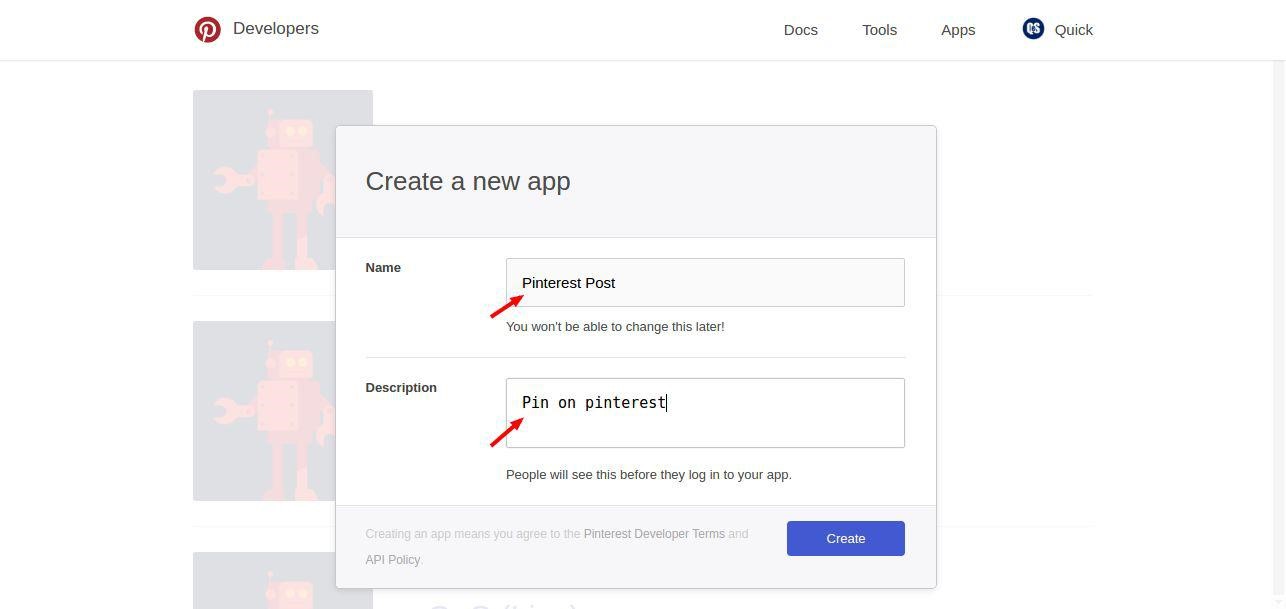
- Click Create App and enter relevant information and click Create.
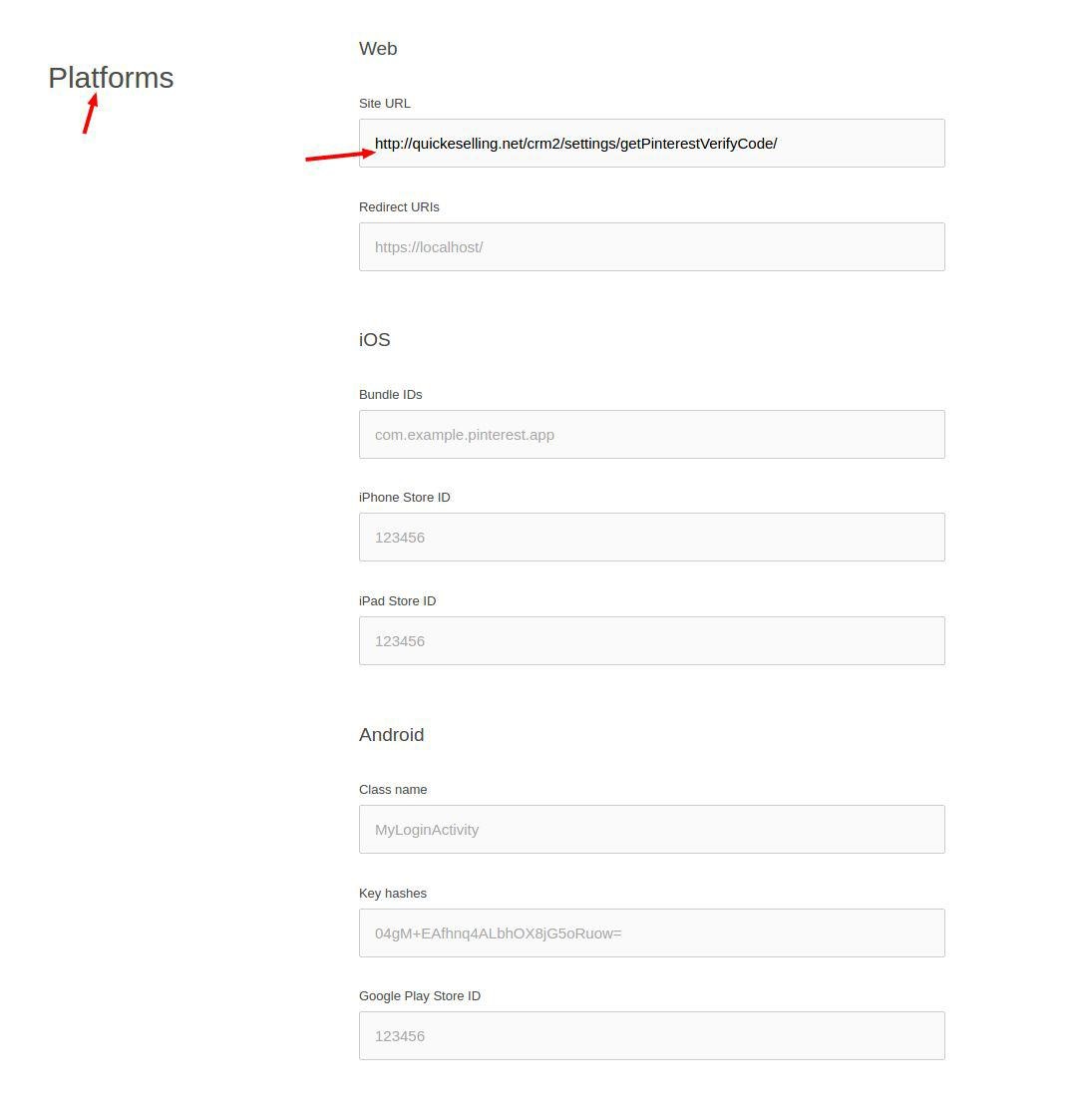
- Click the newly created app from the listing and go to the Platform (Web) section and in Site URL, enter http://quickeselling.net/crm2/settings/getPinterestVerifyCode/ .
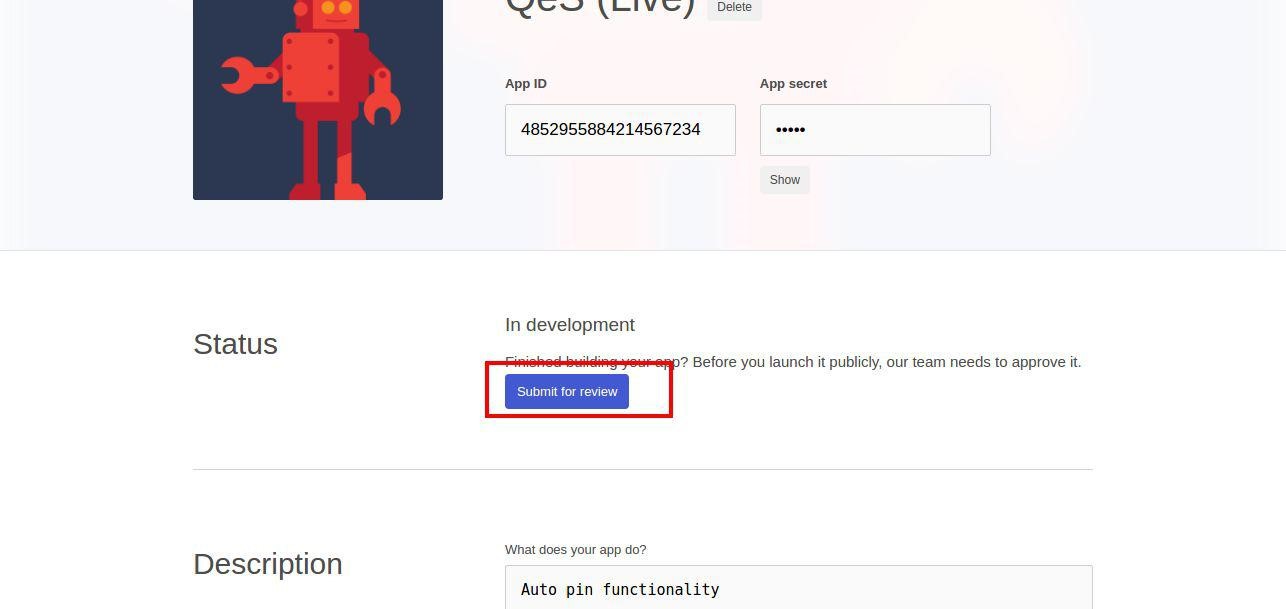
- Copy App ID and App Secret. You have to add these details in your CRM.
- Save the changes and click Submit for Review. Once the Pinterest team checks and verifies your information your application will be available for public.
This finishes your Pinterest configuration.
CRM configuration
- Login to your CRM. Go to Setting > Social Media . If you have already added Twitter page then edit otherwise click Add Social Media page and enter App ID and App Secret that you copied in previous step. Click Save.
- Click X icon against Twitter to authorize your credentials.
- Enter your Twitter credentials to login. You will be redirected to the Permission page. Provide appropriate permissions. After this, once again you will be automatically redirected to your CRM page. This will authorise your Pinterest account.
- Go to Settings > Social Media and click Social Media Sharing. Select Pinterest and click Save.
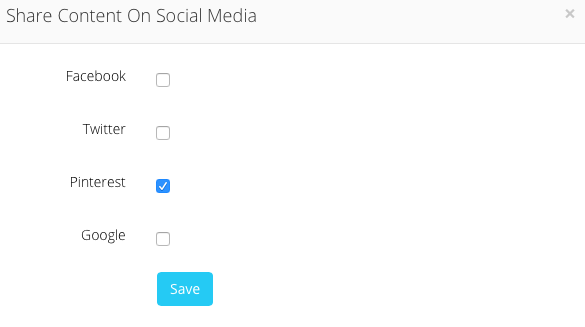
This completes integration and now you can share and post product data on Pinterest without logging into Pinterest !!.
Comments
0 comments
Please sign in to leave a comment.