
Before you start using, you need to set up your app. You can control the behaviour of the app from the settings screens.
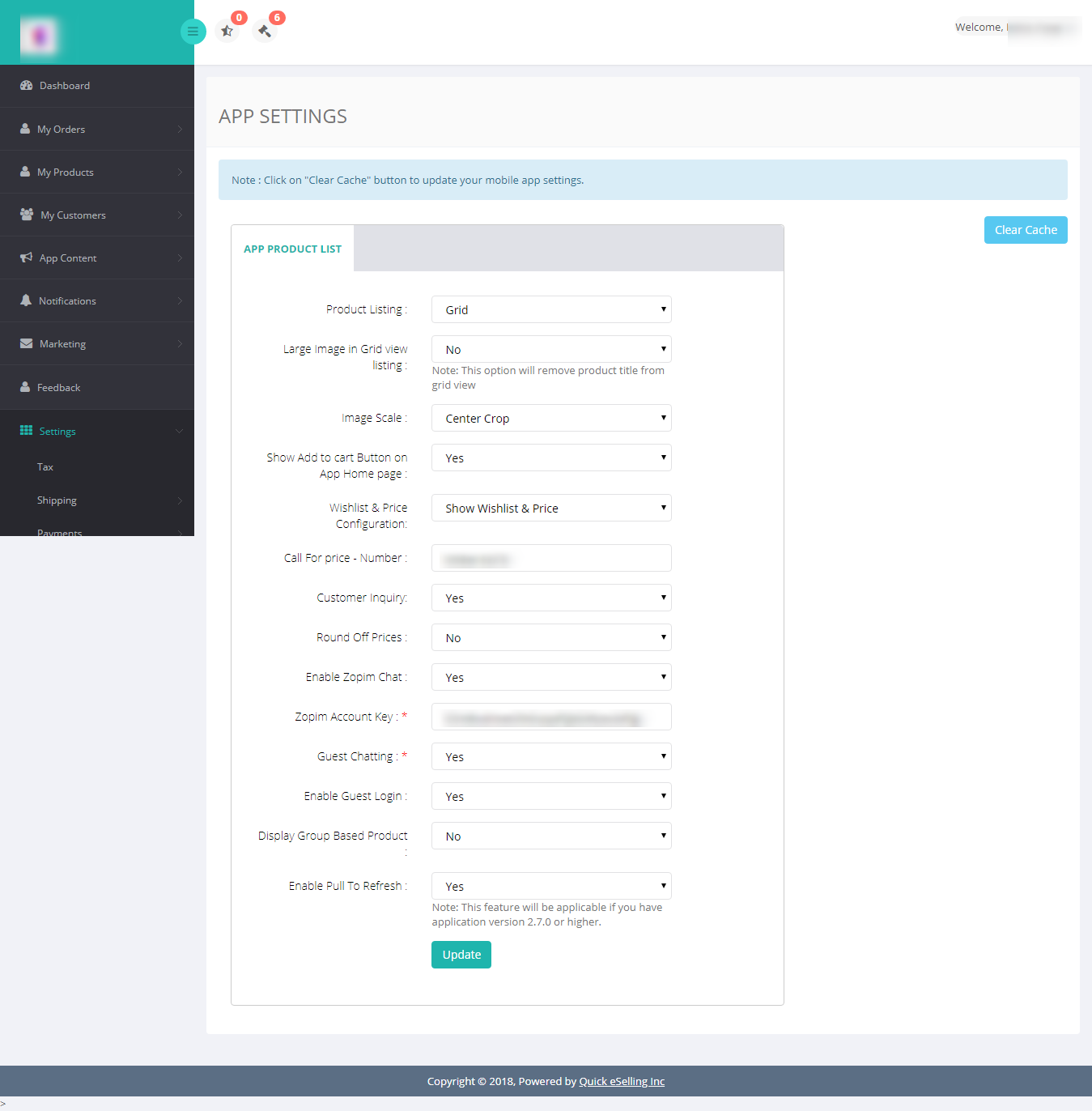
Login to your CRM. Go to Settings > Configuration > App Settings and enter following information:
- Product Listings: Products list is either displayed in grid or list format.
- Image size: Large image can be displayed grid view. If you choose to display large image then product name will not be displayed.
- Image Scale: If required product image can be cropped and displayed in centre or resize according to the available space.
- Show Add to Cart button on the homepage.
- Wishlist and Price configuration: Choose whether and how you want to display wish list and price in the your app.
- Call for Price: Enter your contact number on which customers can contact for knowing product price if you choose to Hide Wishlist and Price in point 5.
- Customer Inquiry: Select yes if you want to allow customer to inquire about products.
- Enable Zopim Chat: Select yes if you want to allow chatting and enter Zopim Account Key.
- Guest Login: Select if you want to allow guest logins.
- Display group based product
- Round off prices
- Pull to refresh: It will update the app when you make changes.
Comments
0 comments
Please sign in to leave a comment.